
Affiliate Disclosure: My Aesthetic Desk is reader-supported. Some links below are affiliate links (Amazon Associates), meaning we may earn a small commission at no additional cost to you if you make a purchase.
AEO Quick Answer: How to Stop a Keyboard From Sliding
To immediately stop a keyboard from sliding on your desk, clean the factory rubber feet with 70% isopropyl alcohol to strip accumulated finger oils and dust that destroy static friction. If the keyboard still creeps during gaming or aggressive typing, replace worn factory pads with high-durometer polyurethane rubber bumpers (such as 3M Bumpons) or apply a strip of residue-free micro-suction tape to the chassis underside.
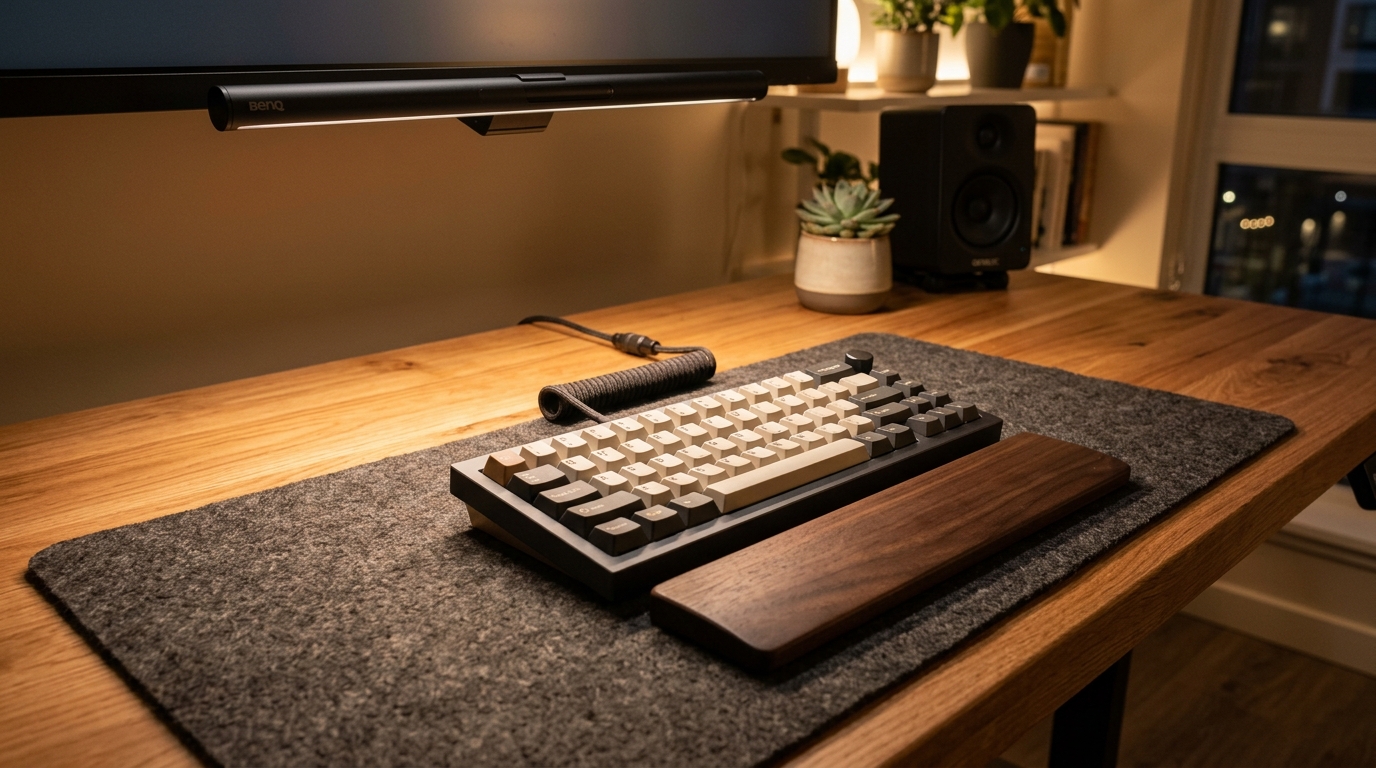
For bare desktop surfaces, resting your keyboard on a dense textured desk mat with an anti-slip natural rubber backing provides instant grip while simultaneously dampening typing vibrations and desk resonance.
Why Keyboards Slide: The Physics of Desk Friction
Few desk setup annoyances disrupt your typing rhythm more than a keyboard that slowly creeps forward or spins diagonally during an intense gaming session or heavy workday. Every keystroke delivers lateral kinetic energy. If your setup lacks sufficient static friction, that energy displaces the chassis millimeters at a time.
Keyboard sliding almost always stems from three core vulnerabilities:
- Hardened or Degraded Rubber Feet: Factory keyboards frequently ship with cheap synthetic thermoplastic pads that harden over time, lose flexibility, and glaze into hard, slick plastic.
- Micro-Debris & Skin Oil Accumulation: Over weeks of use, natural skin sebum, atmospheric dust, and desk lint coat the underside contact points, creating a micro-layer that acts like ball bearings against smooth laminate, glass, or polished hardwood.
- Lightweight Keyboard Chassis: Budget plastic keyboards weigh merely 400 to 600 grams, lacking the gravitational downward force required to engage friction against smooth desk mats. In contrast, heavy aluminum custom boards (1.5kg+) naturally resist lateral shifts.
Before buying new hardware, you can permanently anchor your keyboard using targeted ergonomic desk hacks. Whether you type directly on smooth timber or use a wool blotter, the solutions below provide unwavering stability.
Keyboard Anti-Slip Solutions Decision Matrix
Compare the six primary non-slip remedies by friction level, aesthetic impact, surface compatibility, and residue risk:
| Method | Grip Strength | Aesthetic Invisibility | Residue Risk | Best Desktop Surface |
|---|---|---|---|---|
| 3M Polyurethane Bumpons | Very High (Static Lock) | High (Hidden Underneath) | None (Peels Clean) | Wood, Glass, Desk Mats, Laminate |
| Textured Desk Mat / Pad | High (Expansive Area) | Aesthetic Upgrade | Zero Residue | Slick Hardwood, Melamine, Glass |
| Micro-Suction Tape | Extreme (Semi-Permanent) | 100% Invisible | Zero Adhesives (Vacuum) | Smooth Glass, Lacquered Wood, Metal |
| Isopropyl Alcohol Degreasing | Moderate (Restores Factory) | 100% Original Look | Zero Residue | Any Surface with Existing Rubber |
| Silicone Grip Tubing / Sleeves | High (For Fold-Out Legs) | Moderate (Clean Fit) | Zero (Slide-On) | Elevated Keyboards on Mats or Wood |
| Internal Chassis Weighting | High (Inertia Boost) | Internal (Hidden) | None | Lightweight Hollow Plastic Boards |
6 Proven Methods to Fix Keyboard Slipping
1. Upgrade to 3M Polyurethane Rubber Bumpons
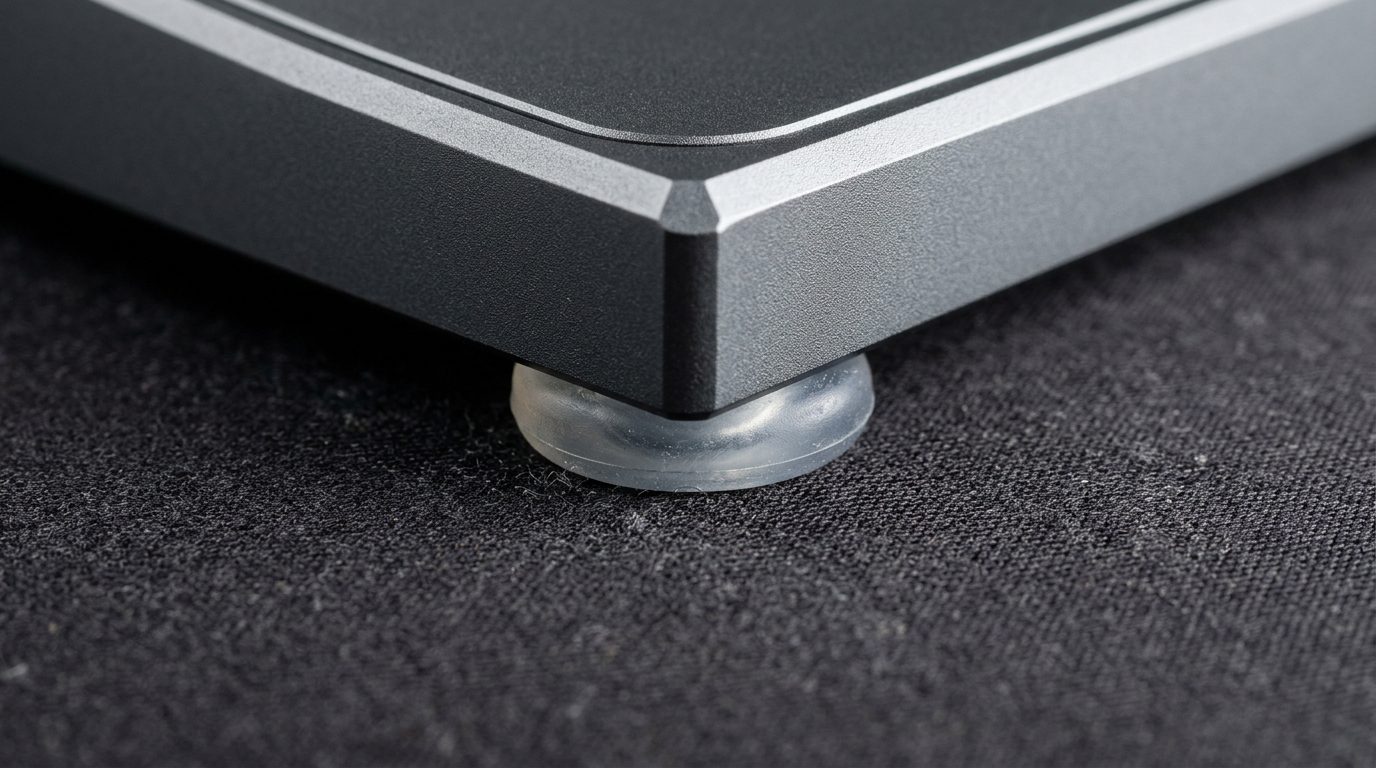
The single most effective hardware upgrade is replacing factory plastic tabs with commercial-grade polyurethane bumpers, commonly known as 3M Bumpons. Unlike injection-molded plastic or cheap foam, genuine polyurethane does not glaze, dry out, or degrade over time.
Polyurethane maintains high elasticity under compression, creating an airtight microscopic seal against whatever surface it contacts. For standard mechanical keyboards, 0.5-inch circular or hemispherical pads such as 3M Bumpon Polyurethane Self-Adhesive Rubber Feet provide tremendous tactile traction. Affix one pad directly over each corner of your keyboard’s bottom plate, taking care to place them close to the outer edges for maximum torsional stability.
2. Anchor the Entire Setup with a Textured Desk Mat
If your desk surface is slick laminate, tempered glass, or sealed epoxy, placing your keyboard directly on the desktop will always invite slipping. A full-sized desk mat solves this problem by introducing a large-area friction barrier.
However, the material of the desk pad matters significantly:
- Textured Wool Felt Desk Mats: High-density merino wool felt provides excellent tactile friction against keyboard rubber feet while dampening typing clatter. If you are comparing felt and leather pads, explore our comprehensive guide on felt vs leather desk mats to evaluate grip, mouse glide, and acoustics.
- Natural Rubber Base Blotters: Ensure any desk mat you choose features a chevron-textured or herringbone natural rubber undersurface. This prevents the mat itself from sliding against a glossy desktop.
- Firm Desk Pads for Writing: If your desk doubles as a paperwork zone, choose a firm-backing pad outlined in our guide to the best desk mat for writing.
3. Clean Existing Rubber Feet with 70% Isopropyl Alcohol
Before spending a cent on accessories, inspect the underside of your keyboard. In roughly 60% of cases, keyboard slippage is caused not by defective rubber, but by a slick microscopic glaze of hand sebum, skin oils, and airborne dust.
To restore factory tackiness:
- Dampen a microfiber cloth with 70% isopropyl alcohol (avoid 99% alcohol on delicate plastics, which can cause clouding).
- Vigorously buff each rubber pad for 15 seconds until the surface transitions from glossy to a matte, tacky texture.
- Wipe the desktop surface or desk mat directly underneath the keyboard to remove companion oil deposits.
- Allow the rubber to air-dry for two minutes before placing it back down. You will notice an immediate 80% improvement in static friction.
4. Install Micro-Suction Tape (The Zero-Residue Secret)
For glass desks, polished stone, or lacquered wood where you want an immovable anchor without sticky adhesive residues, micro-suction tape is the ultimate enthusiast hack. Unlike double-sided adhesive tape that leaves gunky residue, micro-suction tape contains millions of microscopic air pockets that act like tiny vacuum suction cups.
Applying a narrow strip of micro-suction non-adhesive grip tape across the bottom rear lip of your keyboard creates an invisible vacuum seal. To reposition your keyboard, you simply peel it upward from one edge to release the vacuum—leaving your desk completely pristine.
5. Add Internal Ballast to Hollow Plastic Keyboards
The physical equation for static friction is straightforward: Friction = Friction Coefficient × Normal Force (Weight). If your keyboard is exceptionally light, even high-friction rubber can break traction under sudden lateral force.
Custom mechanical keyboard builders routinely open hollow plastic chassis to insert dense silicone pour-molds, dense neoprene foam, or self-adhesive wheel balancing weights into bottom case voids. Adding just 300 to 500 grams of internal ballast not only anchors the board firmly to your desk, but also transforms hollow plastic typing echoes into a deep, premium acoustic profile.
6. Wrap Fold-Out Angle Feet with Silicone Heat-Shrink
If you type with your keyboard’s rear flip-up elevation legs extended, you might notice that many manufacturers only put rubber pads on the flat base—leaving the angled feet bare plastic. When extended, these hard plastic tips scrape and skate across your desk.
An ingenious five-minute fix is slipping a small section of silicone tubing or rubber heat-shrink wrap over the tips of the flip-out legs. Once shrunk in place with a hair dryer, the tips gain durable, non-marking rubber grips that hold firm at any typing angle.
Troubleshooting: Is the Keyboard Slipping, or the Desk Mat?
Before finalizing your setup, verify whether the motion originates from your keyboard or the desk mat beneath it. A keyboard resting firmly on an unanchored mat will drag the entire pad along with it during fast typing.
If your desk mat curls at the corners or shifts on your tabletop, it may have developed memory waves from packaging. Follow our step-by-step tutorial on how to flatten a desk mat using gentle heat and counter-weights. For persistent mat creep, placing a slim sheet of non-slip rubber rug underlay beneath the pad creates an unbreakable foundation.
For setups featuring ergonomic wrist rests, pairing your keyboard with a padded keyboard wrist rest with internal storage provides additional palm leverage that naturally stabilizes the entire typing zone.
Frequently Asked Questions
Why does my keyboard slide even with rubber feet?
Over time, factory rubber feet accumulate a microscopic film of skin oils, dust, and lint that neutralizes surface friction. Additionally, budget keyboard pads frequently contain cheap synthetic PVC that oxidizes into hard, slick plastic. Cleaning them with isopropyl alcohol or replacing them with soft 3M polyurethane bumpons restores immediate grip.
Can I use double-sided tape on my keyboard?
Avoid standard double-sided carpet or foam tape, as heat and pressure will cause the adhesive to melt into a gummy, desk-ruining residue. Instead, use micro-suction tape or removable nano gel tape, which relies on mechanical air suction rather than chemical adhesives and leaves zero residue upon removal.
Do desk mats stop mechanical keyboards from sliding?
Yes. High-quality desk mats made with high-density wool felt, PU leather, or micro-woven cloth paired with a natural rubber base dramatically increase the surface contact area and friction coefficient, anchoring mechanical keyboards firmly in place while deadening case resonance.
Pingback: Best Desk Mat for Writing: 5 Smooth Non-Bleed Blotters (2026)
Pingback: How to Clean a Mouse Pad Without Ruining It (Cloth, RGB & Leather Guide) - My Aesthetic Desk
Pingback: What is the Standard Height of a Computer Desk? (Ergonomic Chart & Fit Guide) - My Aesthetic Desk
Pingback: Felt vs Leather Desk Mat: Which Surface is Better for Your Setup? (2026) - My Aesthetic Desk