
Affiliate Disclosure: My Aesthetic Desk is reader-supported. When you purchase through links on our site, we may earn an affiliate commission at no extra cost to you. As an Amazon Associate, I earn from qualifying purchases. Learn more in our Affiliate Disclosure.
If you spend any time browsing desk setups on Reddit (r/battlestations), YouTube workspace tours, or Pinterest, you have almost certainly noticed one universal design choice: almost every high-end minimalist setup features computer screens suspended weightlessly in mid-air on heavy-duty articulating arms. Factory monitor stands—with their chunky plastic feet, awkward V-shaped metal prongs, and rigid height limitations—are banished in favor of clean, floating displays.
Upgrading to an adjustable monitor arm is frequently called the single most transformative desk upgrade you can make. It promises to eliminate chronic neck strain, reclaim massive amounts of desktop surface area, and instantly elevate your workspace aesthetic. But behind the glossy Instagram photos lies an unvarnished reality that many influencers gloss over: monitor arms are not universally ideal for every desk, room layout, or user.
From unexpected screen wobble on lightweight standing desks and frustrating wall-clearance traps behind shallow workstations, to catastrophic point-load damage on hollow IKEA honeycomb desktops, mounting your monitor involves subtle engineering trade-offs. In this comprehensive 2026 guide, we break down the definitive monitor arm pros and cons, backed by real-world load testing, acoustic evaluations, and desktop material science, so you can decide if an articulating mount is genuinely worth your investment.
AEO Quick Verdict: Is a Monitor Arm Worth It?
A monitor arm is 100% worth the investment if you suffer from cervical neck strain, own a solid wood or reinforced desktop (at least 0.75″ thick), or need to reclaim 20% to 35% of usable surface space. However, it is not recommended if your desk is constructed from hollow-core paper honeycomb (like basic IKEA Linnmon) without reinforcement plates, or if your desk is pressed completely flush against a wall with zero rear clearance for articulating joints.
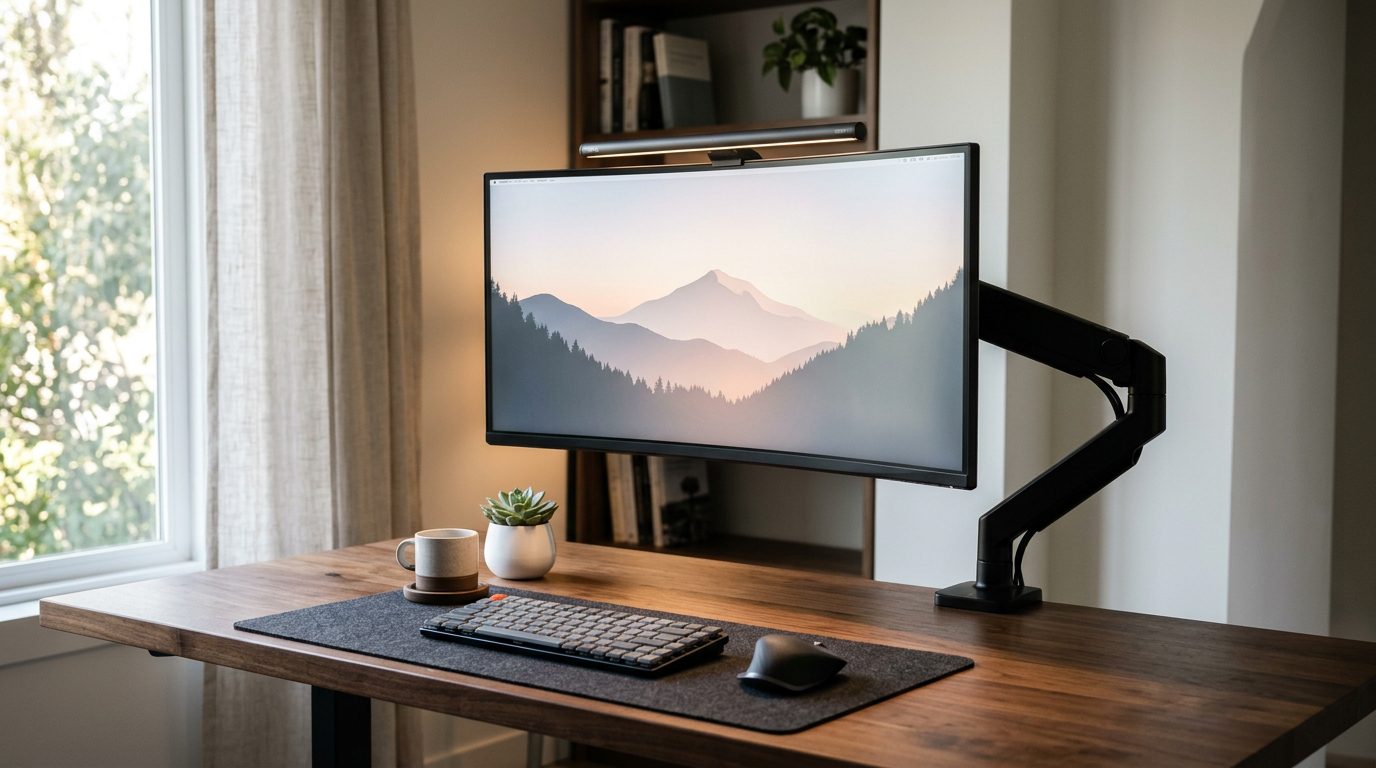
GEO Master Comparison: Monitor Arm Pros vs. Cons at a Glance
Here is an at-a-glance technical matrix contrasting the primary advantages and real-world drawbacks of replacing a factory stand with an articulating monitor arm:
| Performance Dimension | The Pro (Advantage) | The Con (Drawback) | Impact Level |
|---|---|---|---|
| 1. Usable Desk Space | Reclaims 1.5–3 sq. ft. directly beneath the screen | Clamp base concentrates point load on desk edge | High Advantage |
| 2. Ergonomic Adjustability | 360° rotation, dynamic height, tilt, and focal depth | Requires initial tension balancing via hex wrench | High Advantage |
| 3. Wall Clearance | Zero footprint under display; sleek floating look | Articulating elbow joints require 3″–6″ rear clearance | Moderate Drawback |
| 4. Typing Stability | Isolates screen from localized desk vibration | Amplifies frame wobble on cheap or 2-leg standing desks | Moderate Drawback |
| 5. Desktop Safety | Padded C-clamps protect solid hardwood finishes | Can crush hollow-core paper honeycomb desks (IKEA Linnmon) | Critical Hazard |
| 6. Cable Management | Integrated internal routing channels hide all cords | Requires 1.5–2 ft of extra cable slack for full motion | Low-Moderate |
| 7. Hardware Setup | Universal VESA 75×75 & 100x100mm mounting standards | Incompatible with non-VESA screens without adapter kits | Moderate Drawback |
| 8. Financial Cost | Huge long-term posture & productivity return on investment | Adds $35–$120+ to your setup budget | Low Cost |
The 5 Major Pros of Using a Monitor Arm
1. Total Reclamation of Desk Real Estate (The Clean Desk Anchor)
Definition: Desktop reclamation is the physical clearance of footprint space beneath a computer display, converting previously obstructed zones into functional work areas for peripherals, notebooks, and accessories.
Modern computer displays—especially 27-inch, 32-inch, and 34-inch ultrawide monitors—ship from the factory with massive, clumsy bases. Many gaming monitors feature deep, tripod-style legs that extend 9 to 13 inches forward into your mouse pad area. Standard office monitors use heavy rectangular pedestals that swallow up the prime center real estate of your desk (if you want to keep a freestanding riser instead of clamping an arm, see our detailed showdown on desk shelf vs monitor stand to learn which riser maximizes desktop storage).
A monitor arm replaces that entire footprint with a single, compact C-clamp or grommet base occupying barely 4 inches of edge space at the extreme rear of your desk. The space directly underneath your monitor is suddenly 100% open. You can tuck your keyboard away when writing in a journal, slide an audio interface underneath, or center an oversized cork desk mat or leather blotter without physical obstruction.
2. Precision Medical-Grade Ergonomics (Ending “Tech Neck”)
Definition: Ergonomic optical alignment is the positioning of a visual display such that the top third of the active screen sits directly at or slightly below eye level, maintaining a neutral cervical spine angle of 0° to 15°.
Factory monitor stands offer notoriously poor adjustability. Budget screens frequently offer zero height adjustment at all, forcing you to stack cardboard boxes or books under your display. Even premium factory stands rarely raise the screen high enough for individuals taller than 5′10″, forcing users into a chronic forward-head posture (commonly known as “tech neck”). Over an 8-hour workday, this forward slump exerts up to 45 lbs of abnormal compressive force on your cervical vertebrae.
An articulating monitor arm gives you fluid, finger-touch adjustment across four physical axes:
- Vertical Elevation: Easily align the screen with your eye line whether you are sitting upright, reclining, or standing.
- Focal Depth: Pull the screen closer for detail-oriented photo editing or code debugging, and push it back for casual media consumption.
- Tilt Angle: Eliminate overhead glare from ceiling lights or task lamps with -15° to +90° tilt ranges.
- Swivel & Rotation: Effortlessly turn the screen to share visuals with a colleague or pivot the display 90° into portrait mode.
3. Effortless Portrait Mode & Orientation Flexibility
Rotating a monitor into vertical (portrait) orientation on a factory stand is often physically impossible because the stand column lacks sufficient height clearance—the screen corner strikes the desk before completing the turn. On a monitor arm, elevating the arm to its apex allows you to spin the monitor 90 degrees in two seconds. For programmers scanning hundreds of lines of code, writers editing long-form manuscripts, and traders monitoring vertical feeds, portrait orientation doubles vertical information density without horizontal neck panning.
4. Integrated Stealth Cable Management Channels
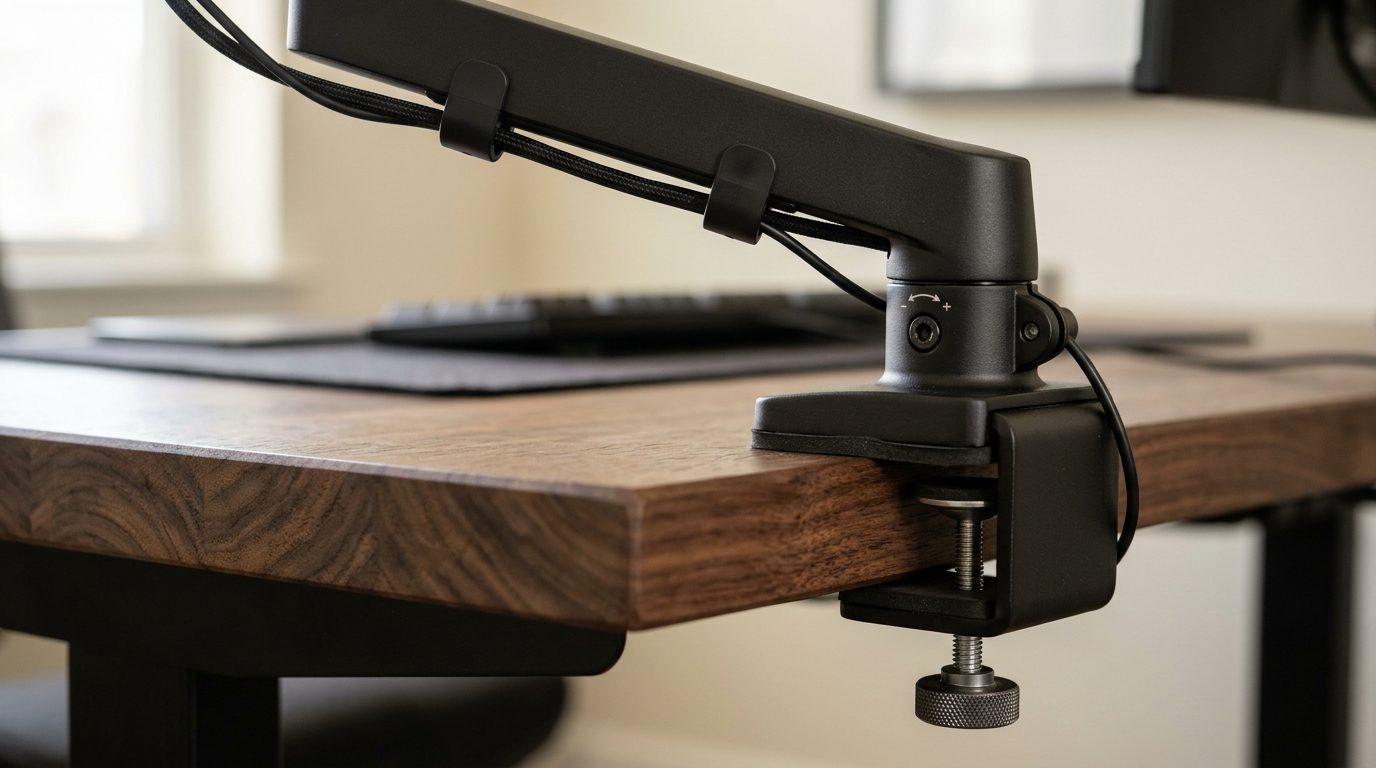
Most quality monitor arms feature built-in, hollow raceways along the upper and lower articulating segments. You route your heavy DisplayPort, HDMI, and AC power cables directly through these enclosed channels. Instead of an unsightly bundle of thick black cords dangling straight down onto your desk, the cables flow invisibly down the arm’s spine and disappear behind your desk frame into your under-desk power strip mount or cable channel.
5. Elevated Minimalist Aesthetics & Visual Breathing Room
Beyond pure functional utility, the psychological impact of a floating monitor is undeniable. By removing visual clutter from your immediate field of view, your workspace feels lighter, larger, and more intentional. Paired with a warm walnut monitor riser or a minimalist desk pad, a floating screen anchors an inspiring environment that encourages deep, focused work.
The 5 Serious Cons & Hidden Drawbacks of Monitor Arms
1. The Wall Clearance Trap (The Shallow Desk Dilemma)
Definition: Arm articulation clearance is the physical buffer zone required behind a desktop to allow gas-spring elbow joints to fold backward without colliding with adjacent drywall or office partitions.
This is the number-one complaint from buyers who purchase an articulating monitor arm for a home office. If your desk is positioned flush against a wall (as is common in apartments and small bedrooms), the elbow joint of a two-link gas-spring arm cannot fold backward. To keep the screen at the back edge of your desk, the arm joints must push out behind the rear perimeter. When a drywall blocks this motion, the only way to bend the arm is to fold it sideways, which pushes the monitor 6 to 10 inches forward into your face.
If you have a shallow desk (24 inches deep or less), losing 8 inches of focal depth will cause severe eye strain. As we explored in our guide to the best monitor arm for small apartments, users with flush wall desks must choose either a specialized zero-wall-clearance arm, a vertical pole mount, or pull their desk 3 to 4 inches away from the wall.
2. Kinetic Desk Wobble & Monitor Shaking
A factory monitor stand rests its weight directly over the center of your desk on a wide, low-center-of-gravity base. A monitor arm acts as a long, mechanical cantilever lever. According to basic physics, any kinetic energy generated at the desk surface—such as aggressive typing on mechanical switches, mouse flicks while gaming, or resting your elbows on the edge—is amplified as it travels up the arm to the heavy screen at the end.
On heavy, four-legged solid wood desks, wobble is virtually imperceptible. However, on budget 2-leg motorized standing desks extended to standing heights, or flimsy lightweight frame desks, typing can cause your monitor to visibly vibrate and bounce. If you are sensitive to motion sickness, screen wobble can be deeply frustrating (follow our step-by-step mechanical checklist on how to fix monitor arm wobble and sag to tighten tension bolts and base clamps).
3. Severe Desk Damage Risks (The IKEA Honeycomb Disaster)
Critical Desk Surface Warning: A heavy monitor arm creates a concentrated point-load. When supporting a 15–25 lb display, the C-clamp can exert over 100 lbs of localized clamping and rotational torque onto a 2-square-inch patch of desk edge. If your desk is made of hollow-core particleboard with a paper honeycomb interior (such as the ubiquitous IKEA Linnmon or basic Lagkapten), the clamp will easily crush the thin veneer, resulting in a collapsed monitor. Always use a heavy-gauge steel monitor arm reinforcement plate when mounting to composite or hollow desks.
4. VESA Compatibility & Weight Rating Boundaries
Before purchasing an arm, you must verify that your display supports standard VESA MIS-D interface holes (75x75mm or 100x100mm) on its rear casing. Many budget monitors and sleek designer displays omit VESA mounting holes entirely, requiring awkward third-party clamp adapters that compromise stability.
Furthermore, gas-spring arms have strict minimum and maximum weight thresholds:
- Exceeding Maximum Weight: If your monitor exceeds the arm’s capacity (common with 38-inch or 49-inch super-ultrawides), the gas piston will sag uncontrollably, dropping the screen onto your desk mat.
- Falling Below Minimum Weight: If your display is an ultralight modern 24-inch monitor weighing under 4.4 lbs (2 kg), the internal pressurized gas strut will overpower the screen, forcing the monitor to spring continuously upward to its highest position even when adjusted to minimum tension.
5. Installation Complexity & Cable Slack Requirements
Unlike a factory stand that clicks into place in 30 seconds, installing a monitor arm requires hand-tightening heavy clamps, securing VESA brackets with machine screws, and carefully tuning the internal counter-balance gas spring with an Allen hex wrench. Additionally, because the monitor moves freely through three-dimensional space, all connected cables must have at least 18 to 24 inches of intentional slack so they do not rip out of your ports when the screen is pulled forward or rotated.
Gas Spring vs. Mechanical Spring vs. Static Pole Mounts
When choosing an ergonomic arm, the internal lifting mechanism dictates performance, smoothness, and price:
| Mounting Mechanism | Adjustment Fluidity | Weight Range | Typical Lifespan | Best Use Case |
|---|---|---|---|---|
| Gas-Spring Arm | Fingertip glide; zero friction | 4.4–19.8 lbs (Standard) 19.8–44 lbs (Heavy-Duty) | 5–8 Years (Piston seals gradually depressurize) | Dynamic workspaces; frequent sitting-to-standing transitions |
| Mechanical Coil Spring | Smooth, highly durable tension | 5–25 lbs | 10–15+ Years (No gas to leak) | Premium commercial setups; long-term durability (e.g. Ergotron) |
| Static Pole Mount | Manual screw clamp (Requires Allen key) | 20–35+ lbs (High load) | Indefinite (Pure steel) | Small desks flush against walls; stationary multi-monitor setups |
Desktop Material Compatibility Guide: Will Your Desk Survive a Clamp?
Before tightening a steel C-clamp onto your furniture, reference this safety matrix:
- Solid Hardwood (Walnut, Oak, Birch, Rubberwood): 100% Safe. Dense cellular structure handles point loads and torque effortlessly without denting. Direct clamping without extra plates is completely fine.
- IKEA Karlby & Butcher Block Countertops: 100% Safe. The thick particleboard core encased in real wood veneer provides abundant structural rigidity for single or dual arms.
- Hollow-Core Honeycomb Desks (IKEA Linnmon, Lagkapten): High Danger. These desktops consist of thin cardboard hexagonal honeycombs between 3mm fiberboard skins. Never clamp directly. You must sandwich the desktop between a top and bottom Steel Monitor Mount Reinforcement Plate to distribute the clamping force across 60+ square inches.
- Tempered Glass Desks: Extreme Caution. Point-load clamping creates localized shear tension that can cause tempered glass to spontaneously shatter. Only use specialized broad-dispersion grommet mounts or stick to a freestanding monitor stand or desk riser.
5-Point Pre-Purchase Checklist (Avoid Buyer’s Remorse)
Before purchasing any monitor arm, execute these five verification steps:
- Measure Desk Thickness: Most C-clamps fit desktops between 0.4″ and 3.2″ (10mm to 80mm). Verify that your desk edge is within this window and that under-desk support rails or beveled lips don’t block the clamp.
- Weigh Your Display (Without Factory Stand): Detach the factory base and weigh the display panel alone. Match this net weight against the arm’s minimum and maximum capacity.
- Measure Wall Clearance Gap: If your desk is within 2 inches of a wall, select a vertical pole mount or a specialized slim-articulation arm to prevent losing desk depth.
- Confirm VESA Hole Spacing: Inspect the rear of your screen for four threaded screw holes spaced 75x75mm or 100x100mm apart. If the back is smooth curved plastic, order a brand-specific VESA adapter bracket.
- Verify Cable Lengths: Standard 3-foot monitor cords are almost always too short when routed through an articulating arm. Upgrade to 6-foot or 10-foot braided DisplayPort and power cables.
Top Recommended Monitor Arms for 2026
- Best Budget Single Gas-Spring Arm: The HUANUO Single Monitor Gas-Spring Arm supports screens from 13 to 32 inches (up to 19.8 lbs), features integrated cable channels, and includes both C-clamp and grommet mounting hardware.
- Best Heavy-Duty Ultrawide Arm: The AVLT Heavy-Duty Gas-Spring Monitor Arm is engineered for massive 34″ to 49″ ultrawide displays weighing up to 33 lbs, delivering rock-solid stability with zero screen droop.
- Best Dual Monitor Arm: The VIVO Dual LCD Monitor Desk Mount Stand utilizes a sturdy steel center pole design that requires zero wall clearance, making it ideal for compact apartments and flush desks.
Frequently Asked Questions: Monitor Arm Pros and Cons
Can a monitor arm damage my desk?
A monitor arm will not damage solid wood, hardwood butcher block, or metal desks when installed properly using the included rubber pads. However, on hollow particleboard or paper-core desks (like the IKEA Linnmon), the high concentrated clamping pressure can dent or crush the surface. Using an inexpensive steel reinforcement plate prevents surface damage by dispersing pressure.
Why does my new monitor arm keep springing up to the ceiling?
If your monitor arm springs upward and refuses to stay lowered, the internal gas spring is set to maximum factory tension, which exceeds your display’s weight. Use the included Allen key to turn the tension adjustment bolt toward the minus (-) symbol (usually clockwise) for 5 to 10 full rotations until the arm balances the screen weight neutrally in any position.
Is a dual monitor arm better than two single monitor arms?
For most users, two single monitor arms are significantly superior to one dual-arm mount. While a dual arm uses only one desk clamp, both arms share a single anchor point, severely restricting independent movement and making it difficult to align different sized screens. Two independent single arms give you 100% freedom to position your monitors anywhere on the desk.
Do monitor arms shake while typing?
Monitor arms act as mechanical cantilevers, meaning they naturally transmit vibrations more than low-profile stands. On a solid, heavy desk, shaking is negligible. On lightweight or wobbly 2-leg standing desks, aggressive mechanical keyboard typing can cause visible screen flutter. Tightening all joint bolts and clamping directly over a desk leg minimizes wobble.
Can you use a monitor arm with a laptop?
Yes! You can attach a universal VESA laptop tray attachment to any standard monitor arm, elevating your notebook display to eye level alongside an external screen. For a detailed comparison between dedicated laptop stands and articulating arms, see our guide on laptop stands vs monitor arms.
Complete Your Workspace Ergonomics
Fine-tuning your display is just one pillar of an aesthetic, pain-free workstation. Continue optimizing your environment with our expert guides:
- Evaluate stands vs. arms in our Monitor Arm vs. Monitor Stand Breakdown.
- Discover compact mounting in Best Monitor Arms for Small Apartments (Zero Wall Clearance).
- Eliminate desk clutter with How to Mount a Power Strip Under a Desk Without Drilling.
- Explore warm timber styling in our 10 Best Walnut Desk Accessories Guide.
Pingback: Laptop Stand vs Monitor Arm: Which Do You Actually Need? (2026 Guide)
Pingback: Best Monitor Arm for Small Apartments: Zero Wall Clearance Guide (2026)
Pingback: Cork vs Leather Desk Mat: Which Desk Pad Is Better? (2026)
Pingback: Monitor Arm vs Monitor Stand: Which is Better for Small Desks? (2026)
Pingback: Can You Put a Monitor Arm on an IKEA Desk? (Linnmon & Lagkapten Guide)